This guide contains certain aspects of the CURB installation experience that have yet to be added to the original manual. The information found here and in other articles within this help desk should provide the most up to the date information and training.
Important articles to read before beginning install (when applicable):
ATTN: A laptop or a tablet is definitely easier to use and there have been some formatting issues with smaller mobile devices (iOS-Safari). Also, there can be some lag when using a cell signal for the configuration so getting on the home owner's wifi or hard-lining into the LAN (Local Area Network) is ideal!!!
ATTN: The CURB config app and web app is designed to be used with Chrome, Safari, Firefox, and some other browsers, however, Internet Explorer is not a supported browser for the CURB configuration app (connect.energycurb.com) or the web app (app.energycurb.com).
ATTN: All account emails are case sensitive to how the account was setup so if a user has any capitalized letters in their email when they set up the account, they will have to sign in the exact way that they entered the email when they created the account.
Other FAQ's:
Powering the CURB hub.
It is possible (if there is room in the panel) to power the CURB hub off of its own dedicated dual-pole breaker to avoid double lugging or pig-tailing wires. A low amperage dual-pole breaker can be used to avoid jurisdictional code violations in the panel. If directly connecting your CURB hub to your router via ethernet, then there is no problem with using your own dedicated dual pole breaker to power the CURB hub. However, this can be problematic with a PLC connection if there is too much interference for the signal with that breaker. In this instance, you may have to power directly off of the breaker controlling the Home Plug's circuit.
My app is stuck in loading.
If your CURB apps are stuck in loading, the first thing you should do is check the connectivity of the CURB hub(s). This can be done by clicking the three-horizontal bar menu option at the top right of the web app. Once you have the menu open, you can select "Panels & Power Hubs". Once there, you will need to select the CURB hub and go into the CURB hub's configuration page. This page will display your connection by color by the five dots. If you have any green, whether intermittent or constant, and fluctuations in the wattage, amperage and cosign value, you are connected.
If you are not connected, the user will need to flip the breaker powering the CURB hub. You should only need to turn off the breaker once...wait 10 seconds...then turn on again. This should work to reconnect the hub on first try, but sometimes it may need to be repeated (up to three times). Each time you attempt a reboot, you should wait a good 5 minutes for the network to come back online and the CURB hub to attain an internet signal. If this does not get you back online, please let us know.
If you are online and you still have a stuck in loading experience, you can try deleting your web browser's history and logging out and back into your account to jog it. Also, try using a different browser to confirm the the experience is the same. If that and clicking around in the app still results in loading, please contact us again.
What if the installation is incomplete, and I need to regain access to the install application?
Go to connect.energycurb.com and reenter the serial number of the hub. The installation process will save your data from where you left off. If the install invite email has been sent. The "configuration" side (connect.ernergycurb.com) of the web app will only be accessible by signing into the user's newly created account at app.energycurb.com. Once you are there, you can click on the three horizontal bar menu option. You will select "configuration" and this will take you back to the install side of the CURB web app.
How do I change the display name of a breaker in the clamp assignment section (CURB Hub) of the configuration app:
There is no way to change the display name in the clamp assignment without changing the clamped breaker designation for the clamp.
The "Display Name" will change if you assign a new breaker to that clamp. You will have to go back to the panel section of the configuration app and add the new or differently named breaker(s) first. Also, you can delete any breakers that you created originally but that will not be used. You can do this by clicking the trash can icon.
Once, you have the specific breaker information complete in the panel section, you can go back to the clamp assignment section or CURB Hub side of the configuration app and assign the new breaker (name) to the clamp. The display name needs to be changed to reflect the new assignment. If the desired breaker is assigned to a different clamp, you will have to de-select it form that specific clamp, then, you can assign it to a different clamp. This will take away extra or (no longer) monitored circuit names within the web and mobile apps.
- In the CURB Hub (Clamp assignment section of the configuration) select "No Breaker" on the clamped breaker you wish to change the name of.
- Then click on the back button labeled Installation
- Select the panel that has the breaker you wish to change the name of.
- Change the name of the breaker or add a new one.
- Then click on the Installation tab at the top.
- Go back to the CURB Hub section and change the clamped breaker to the new name. You should see this in the Display Name below.
If you are seeing any residual names of breakers that have been renamed, deleting your browsing history and logging out and back in to your account will fix this.
See blog: http://energycurb.com/nrtl-ul-tuv-demystified/
Can I extend the wires on a CT clamp?
The CT clamp sensor wires, which can be extended using similar gauge as the existing CT clamp wires. They need to be the same gauge as the CT wires 19 or 21. You should be able to extend the clamp wire a few feet without much data degradation, but its not something you would want to do over a long distance. The CT monitoring ability will start to get “noisy” after more than around 3 or 4 feet.
How do I get more or larger CT clamps?
We don't currently have a online store for accessories and parts but are in the process of building it.
In the meantime, we have worked out a way to get you an additional CT clamps.
Go to CURB's IndieGoGo: https://www.indiegogo.com/projects/curb-power-your-life-smarter#/
You will see the different widgets for purchasing different clamps.
Just let us know here at CURB support once you do and we will make sure the order is fulfilled.
How does CURB get around the jurisdictional codes against double lugging breakers in boxes that are not able to handle it?
Also,if there is room and the panel and it does not affect the PLC signal, you can have a dedicated breaker in the panel for powering the CURB hub.
Here are some examples:
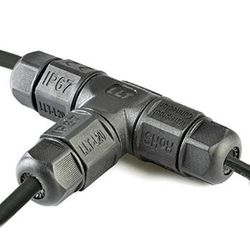
T-connector
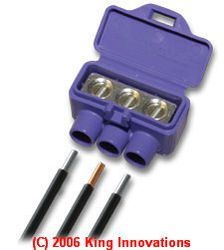
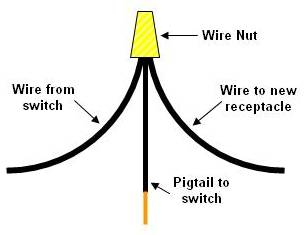
Pig-Tail
Comments